Selections
Basics
- A selection is a collection of records that you've chosen.
- A selection can be as small as one record or as large as all the records on a page.
- Selections are "sticky." That means a selection always stays on the page you made it on until you clear it.
- Selections are user-specific. Selections you make can only be seen by you.
- Selections in sub-pages are record specific. For example, if you select people in one event, that selection will not be visable in another event.
- Selections are static. No records are added to or removed from a selection unless you actively do so.
- The records in a selection reflect the current information for the people in the selection. For example, if a user updates the email address for one of the records in your selection, the selection reflects the new email address.
- The selection count in the bottom left corner of your screen reflects the number of records in a given selection.
Making a Selection
Selections are sticky! If you made a selection on a page and are going to make another selection on the same page, you should clear the initial selection unless you intentionally want to add to the original selection. Wondering if you already have a selection on a page? Check the bottom left corner of the screen. If it says "0 Selected". you don't have any records selected.
To select one or several records, click the box next to the record. A span of records may be selected by choosing the first record, holding the shift key, then selecting the last record. In this method, the first/last record and all records in-between will be selected.
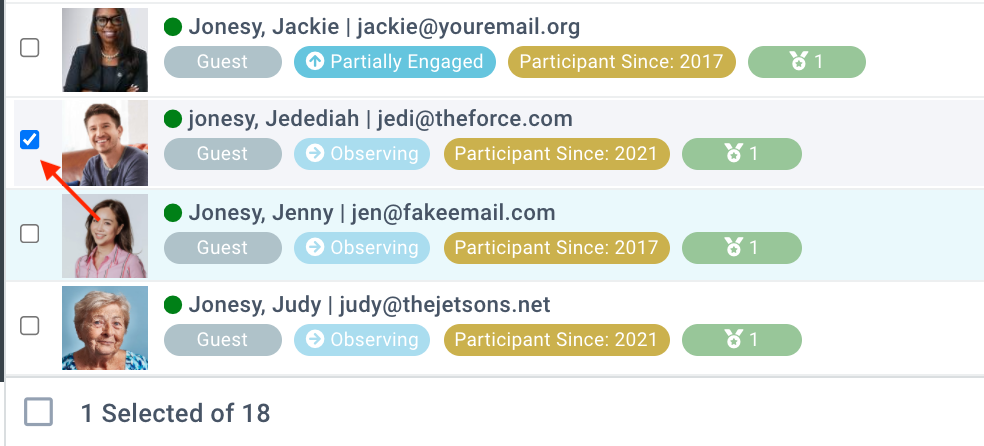
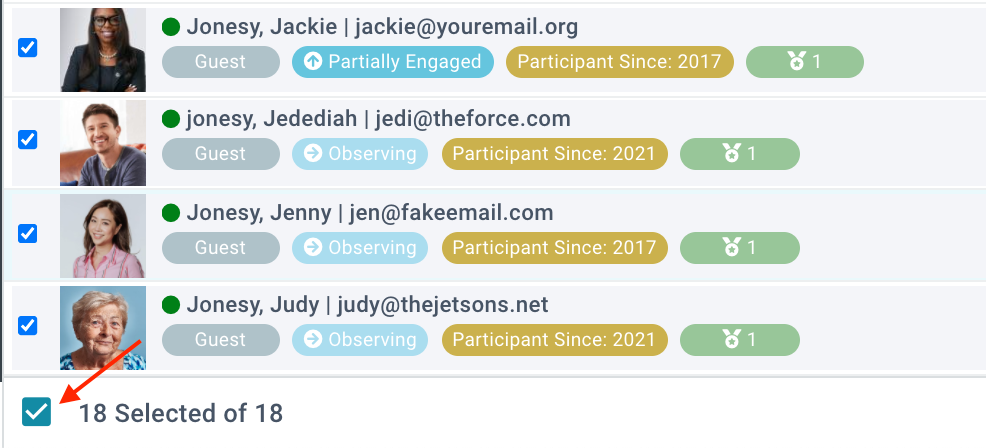
To select all records, click the box in the bottom left corner.
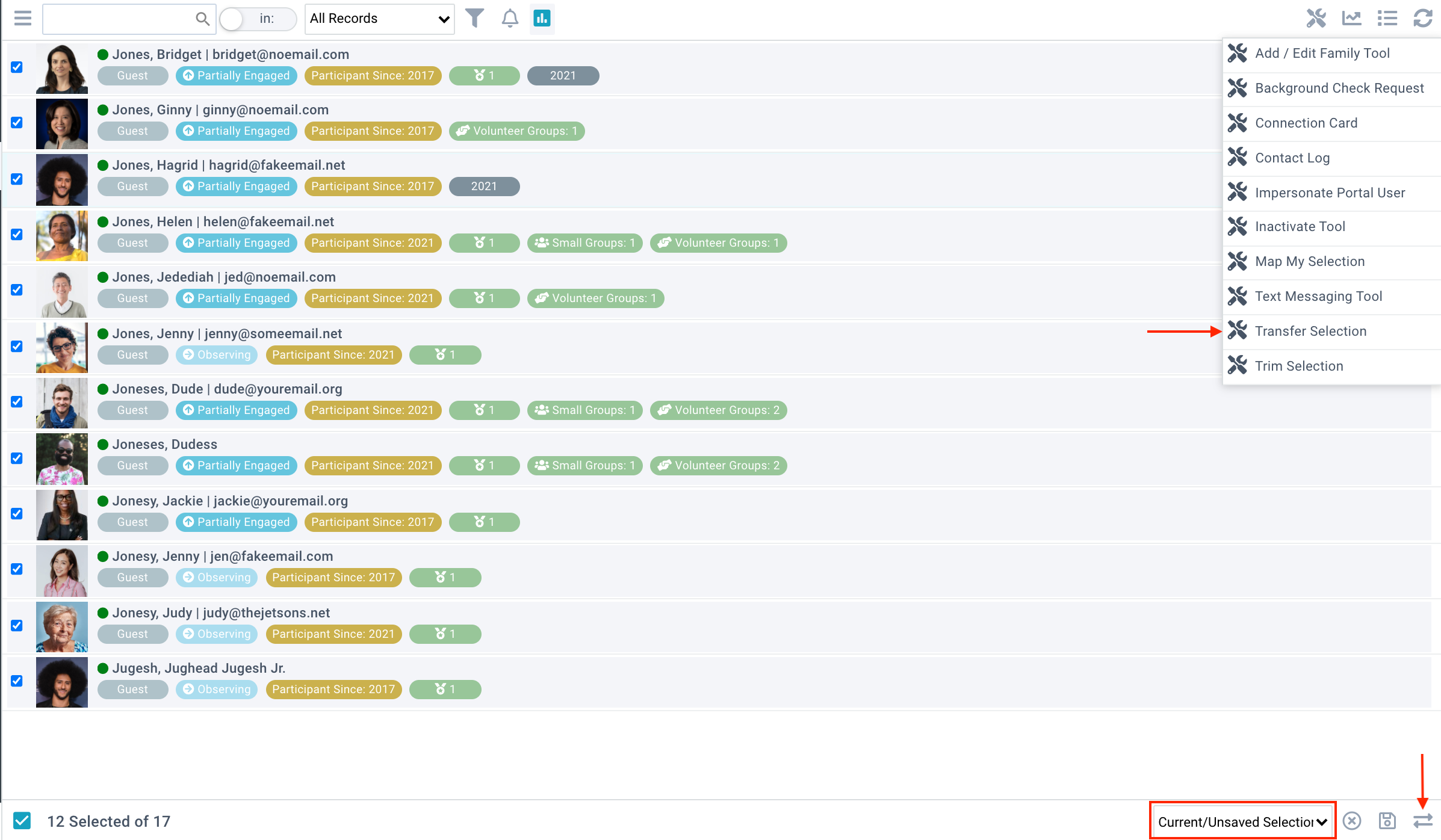
If you want to view only the records you've selected, choose Current/Unsaved Selection in the selection menu in the bottom right corner. The default will be to All Records.

Removing Records from a Selection
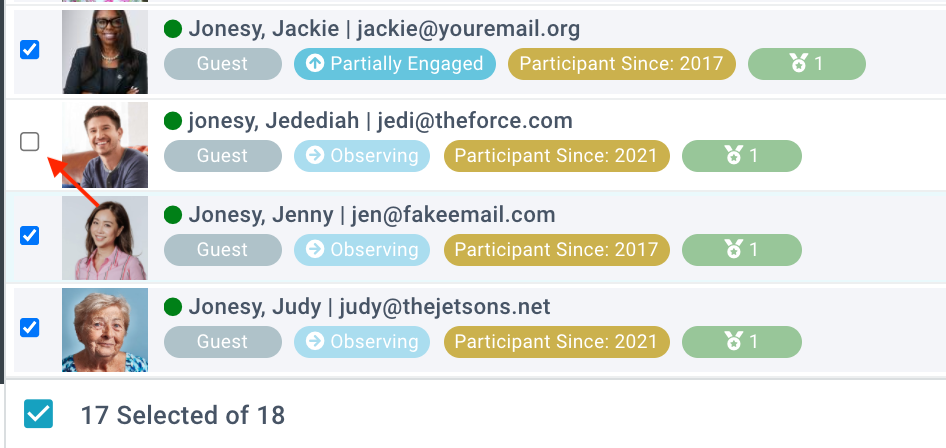
To remove records from a selection without clearing the entire selection, click the checkbox next to the record to unselect it.
Clearing a Selection
To clear an entire selection, choose your selection in the selection menu (it will be Current/Unsaved Selection unless you previously saved/named your selection). Then click the "X" next to the selection menu. Once you've cleared a selection, the selection count in the bottom left corner of your screen will read 0 Selected.
Clicking the "X" will clear the entire selection currently showing in the menu.

Saving a Selection
Saving a selection allows you to return to the selection at a later time. To save a selection, choose Current/Unsaved Selection in the selection menu. Then click the save icon, select your desired Save Mode, and click OK.
- Append to Existing Selection is only available if at least one saved selection already exists. To do so, choose the desired selection in the Selection Name drop-down. This will add the new selection to the existing selection.
- Create New Selection requires you to name the selection.
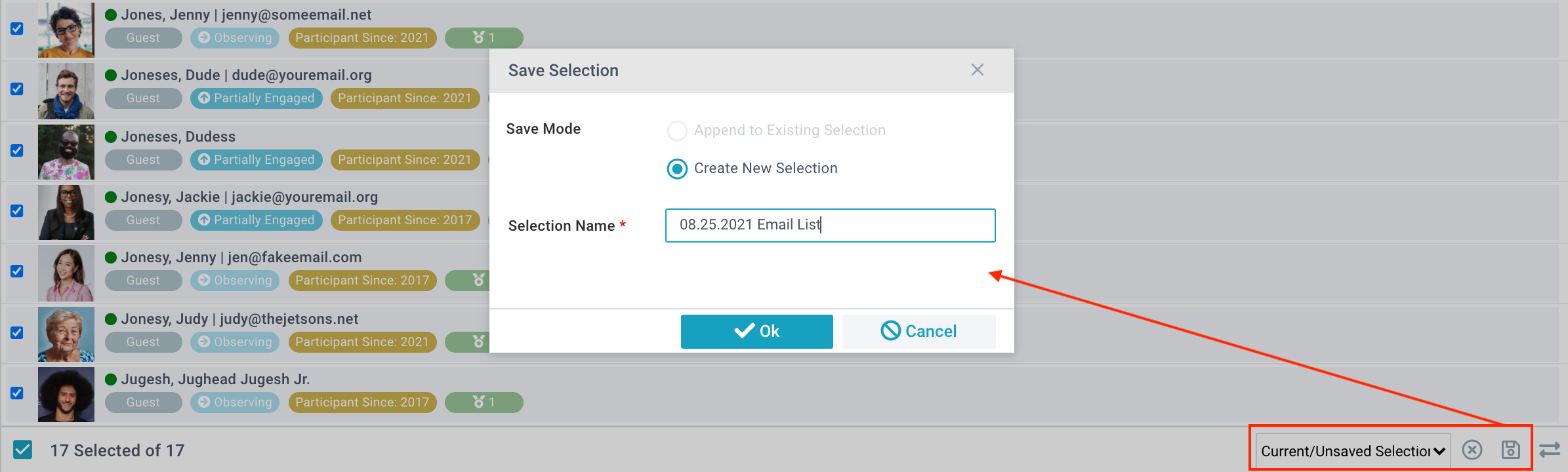
Upon saving your selection, the selected current/unsaved selection is cleared out and you will not have any selecitons when looking at all recrods. Now your selection is accessible as an item in the selection drop-down list.
Selections are static! If you saved a selection of your Usher Team last week and someone joined the team this week, your selection does not include the new team member unless you append to the selection.
Exporting a Selection
Exporting your selection allows you to use the information outside of MinistryPlatform. To export your selection, open the Action menu in the upper left side of the page and select Export:
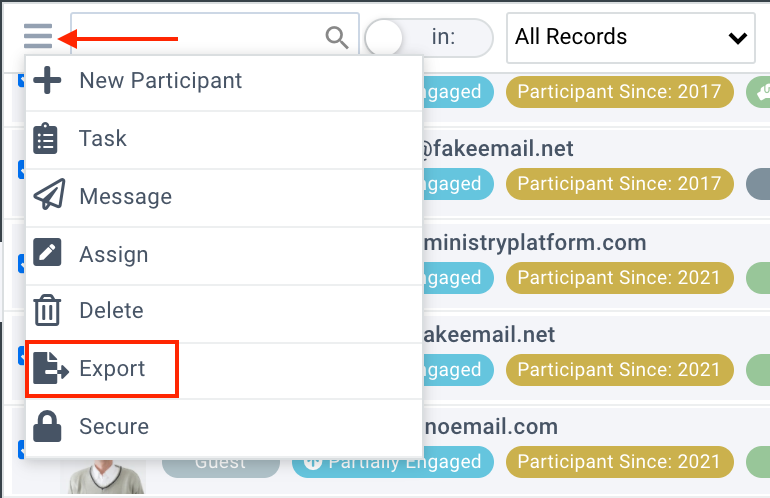
Next indicate your desired Export Options:
- Current View exports the columns in the current view
- Selected Records exports the columns in the All Records view.
Then choose your Output Format, and click Export. A file will download for your use.
Transferring a Selection
The transfer button is available on all pages and sub-pages, and moves a selection from one page to another. There are many reasons transferring a selection might be useful, including taking advantage of page-specific reports or page-specific merge fields in the New Message Tool.
To transfer your selection, click the transfer arrows on bottom right side of the page. Then indicate the selection name and the desired page to transfer the selection to.
You can also use the Transfer Selection Tool. Using the Tool will let you select heads instead, creating missing records, transfer your selection to another user, and more. The Transfer Selection Tool is in the Tools menu on the upper right side of the page.
Using a Selection
Selections have a wide variety of uses. Using selections, you can:
- Run reports Any report that has "Selected" in the title will run the report on the selected records.
- Email The New Message Tool allows you to send an email to the selected records.
- Map it out The Map My Selection Tool allows you to see the selected records on a map.
- Text The New MessageTool allows you to send an SMS to the mobile phone numbers of the selected records.
- Move your selection The Transfer Selection Tool allows you to move your selection to different pages of the Platform.
- Refine your selection The Trim Selection Tool allows you to hone in on the desired records by trimming out records that meet certain criteria.
- Combine duplicates The Combine Contacts Tool allows you to combine the selected records. If you need records combined please contact an IT staff member.
Building a Complex Selection
At times, you may need to build a selection from several pages/areas of the system. The best way to do this is to utilize the "Transfer Selection Tool." This would allow you to create one selection of people who have attended multiple events, been participants in various or achieved certain milestones. The following would allow you to select participants from Groups and Events:
- Start on on the Group Participants page.
- Search for one group that you want to select. Select it.
- Search for the next group, select that.
- Continue searching for and selecting records until all appropriate Group Participants are selected.
- Click on Tools > Transfer Selection.
- Choose "Copy to another Page."
- Give your selection a name.
- Click on "Transfer."
- Navigate to the Event Participants Page.
- Search for one Event and select the participants.
- Search for the next Event, select those participants.
- Continue searching for and selecting records until all appropriate Event Participants are selected.
- Click on Tools > Transfer Selection.
- Choose "Add to an Existing Selection."
- Choose the selection created above.
- Click on Transfer.