mp-navigation
Navigation
When you log into MinistryPlatform, you're automatically navigated to your Home page. From your Home page, you can use the basic navigation menu to access the various pages of MinistryPlatform. Remember you can always switch the layout to suit your preferences or the work you're doing that day.
Basic Navigation
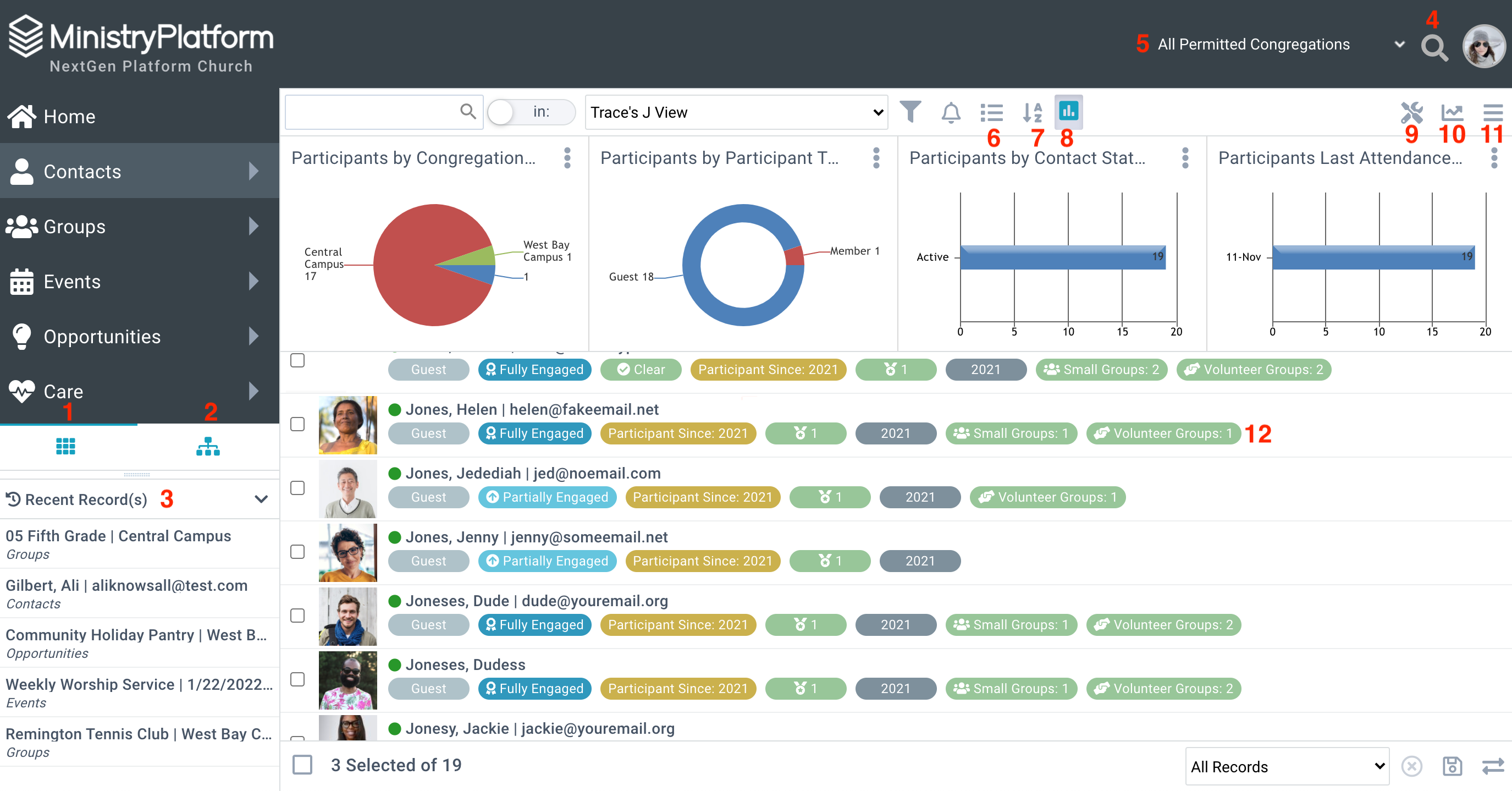
- Basic Navigation: All your high-use pages in one place. Tap the section name (for example, Contacts, Groups, Events) to open that page. And tap on the arrow to the right of the section name to open related high-use pages. These have been grouped together for easy, intuitive searching.
- Advanced Navigation: The Platform navigation you know and love, with all the same functionality.
- Recent Records: Displays previously visited records for an authenticated user per device. When you don't want to view this history you can use the down carrot to collapse this. This also provides a quick way for you to jump back to something you were working on previously.
- Global Search: Click the spyglass icon to open the Global Search bar. Returns matches across multiple Pages and Record Facts.
- Global Filter: Limit results by Congregation. (We don't use multiple Congregation so this feature will not need to be used.)
- Layout: Tap to toggle between list, grid, and calendar layouts.
- List Sort: Sort the List Layout in alphabetical or reverse alphabetical order with the click of a button.
- Charts: Tap the button to hide or display charts.
- Tools: Open the tools menu to access the Add/Edit Family, Contact Log, Transfer Selection, and more. Available tools are governed by the User's Security Roles.
- Reports: Tap the menu to see available reports. The Report menu is dynamic, so if you don't select any records, you won't see reports that require a selection.
- Actions: Complete a task, send a message, or take any action allowed by your Security Role. The Action Menu is dynamic, so you'll only see actions that are relevant to what you're doing in the Platform.
- Record Facts: Key information available at-a-glance when using the List Layout or an open Record.
Layouts
You can change the layout you are using when you navigate to a page by using the IMAGE button. To use a more familiar version of Ministry Platform it is recommended to change to the grid layout.
List Layout
List Layout is a way to see details at a glance. With its easy-on-the-eyes "fat rows" and color-coded record facts, casual users can easily find the information they need to know without digging through what they don't need to know.
Grid Layout
The grid layout features the rows and columns you are acustom to seeing. It's easy to search and you can use the powerful Advanced Search tool to create views for yourself, other users, or a group of other users.