Mass Comm Request Process
Mass Comms are any form of communication directed to 25 or more people. The process below outlines the steps for sending a mass comm through Ministry Platform. To ensure that ministries are communicating in alignment with the church as a whole, mass comms are reviewed by the Communications (Comms) department.
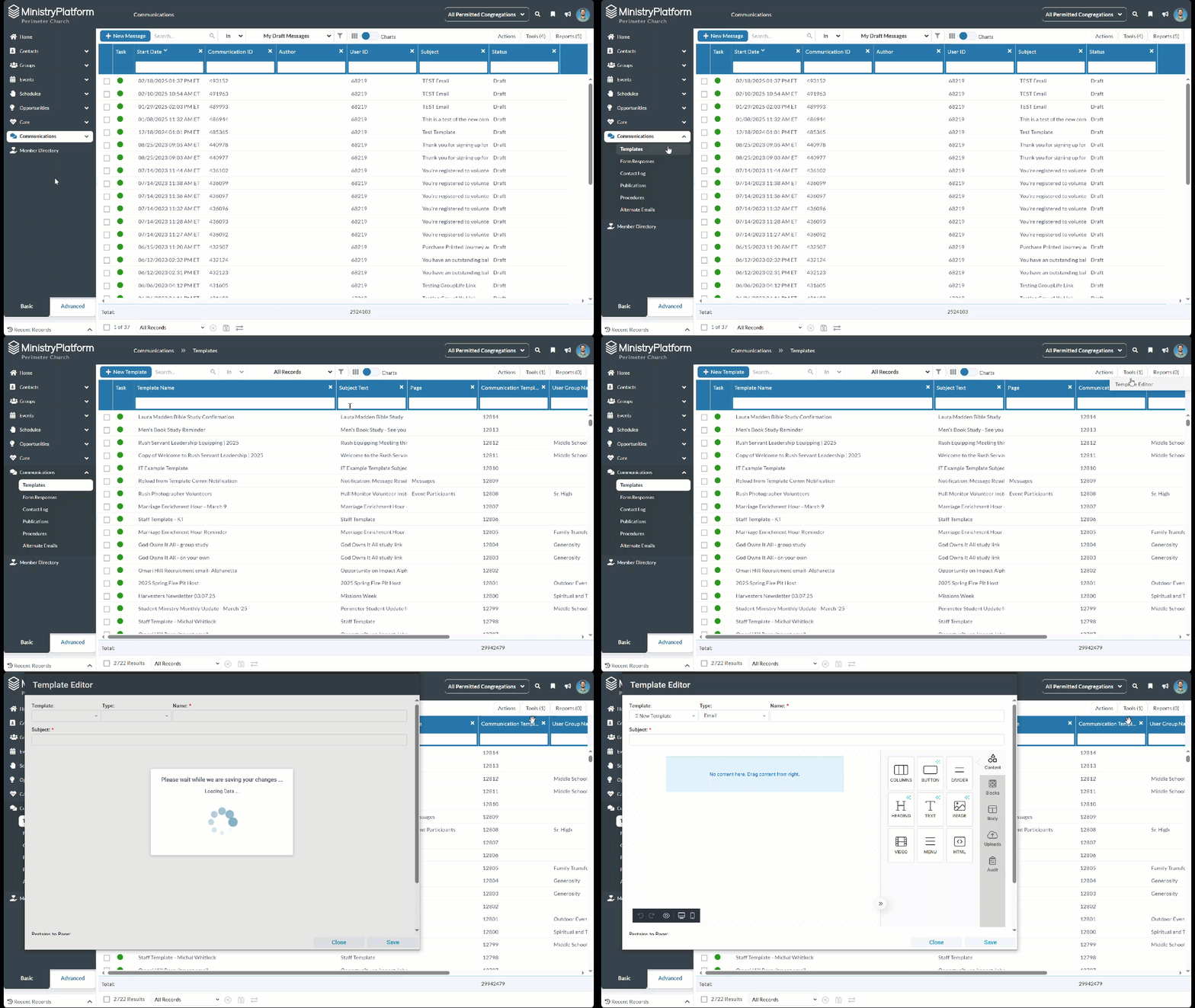
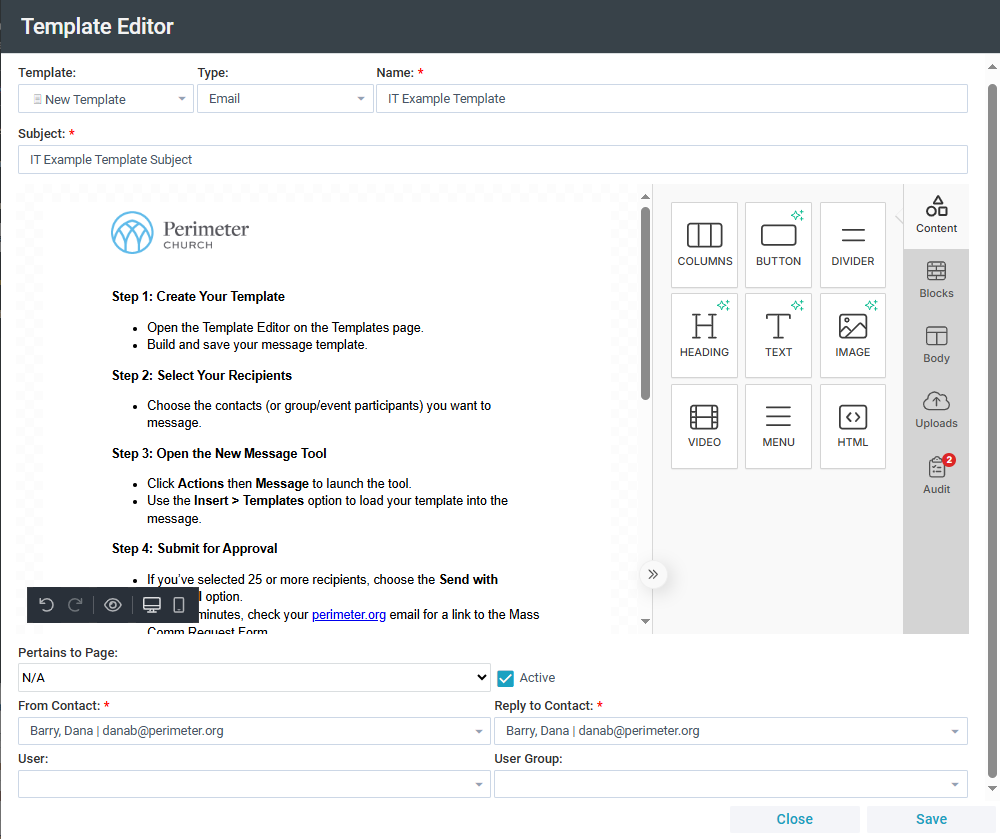
Step 1: Create a Template
If you haven’t done so already, create your message template using the Template Editor on the Templates page. Email communications must be started with a template to allow for post-review edits.
Step 2: Select Recipients
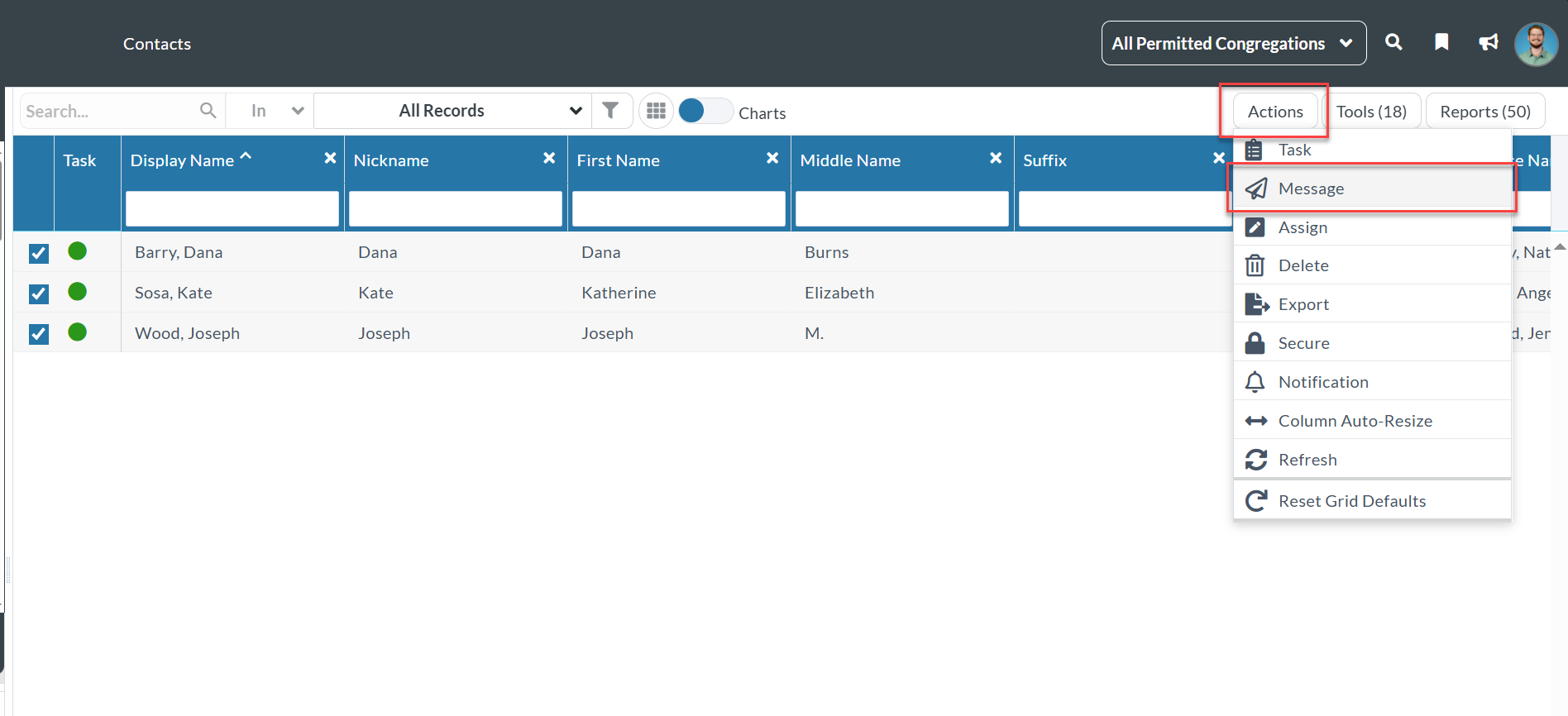
Select your recipients on the relevant page in Ministry Platform (Contacts, Group Participants, Event Participants, etc.).
Step 3: Open New Message Tool
Click the Actions button, then select Message to open the New Message Tool.
Step 4: Insert Template
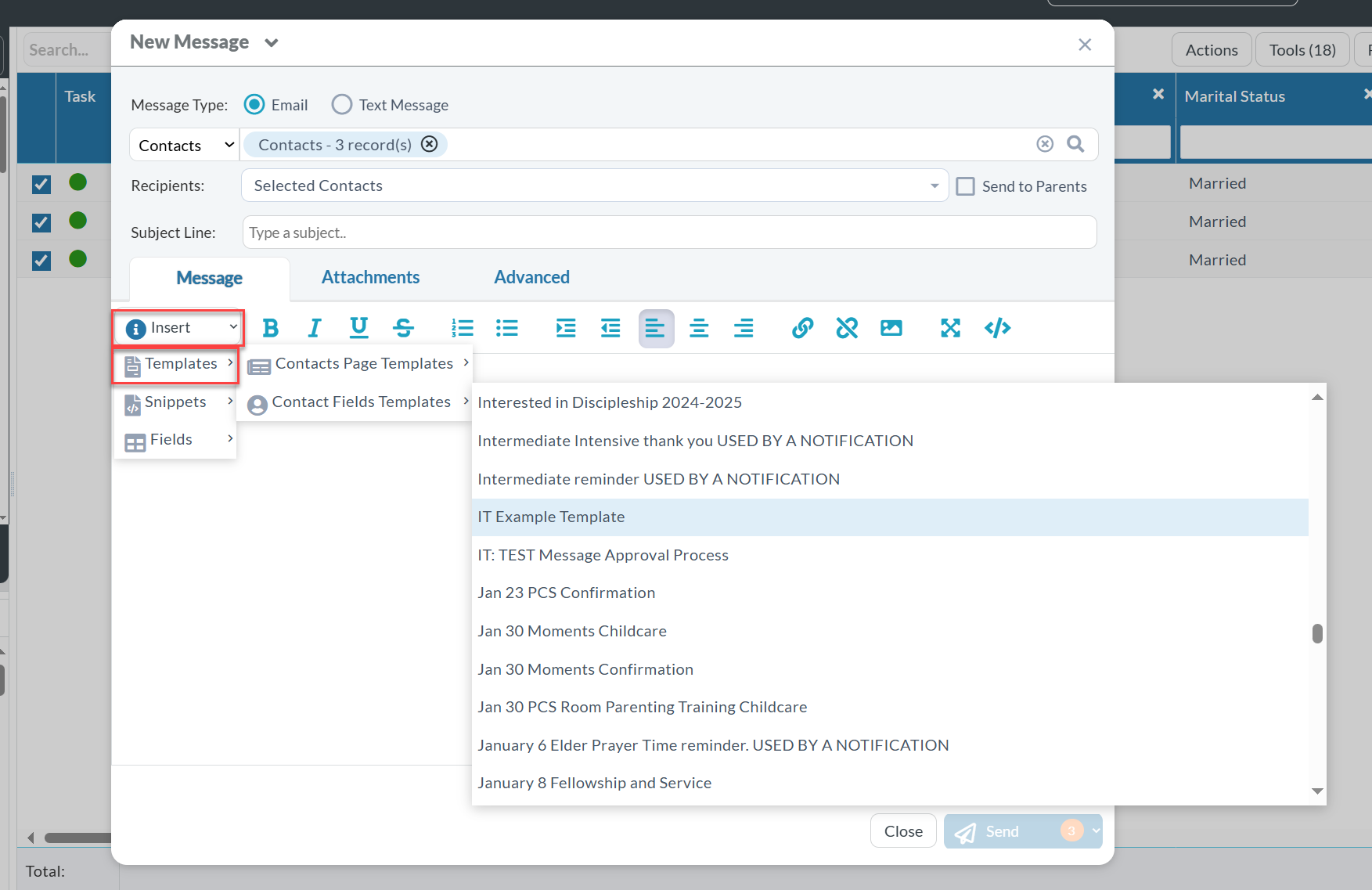
Click the Insert drop-down button, then select Templates. Choose your desired template from the list. The template content will populate in the New Message Tool.
Step 5: Send with Approval
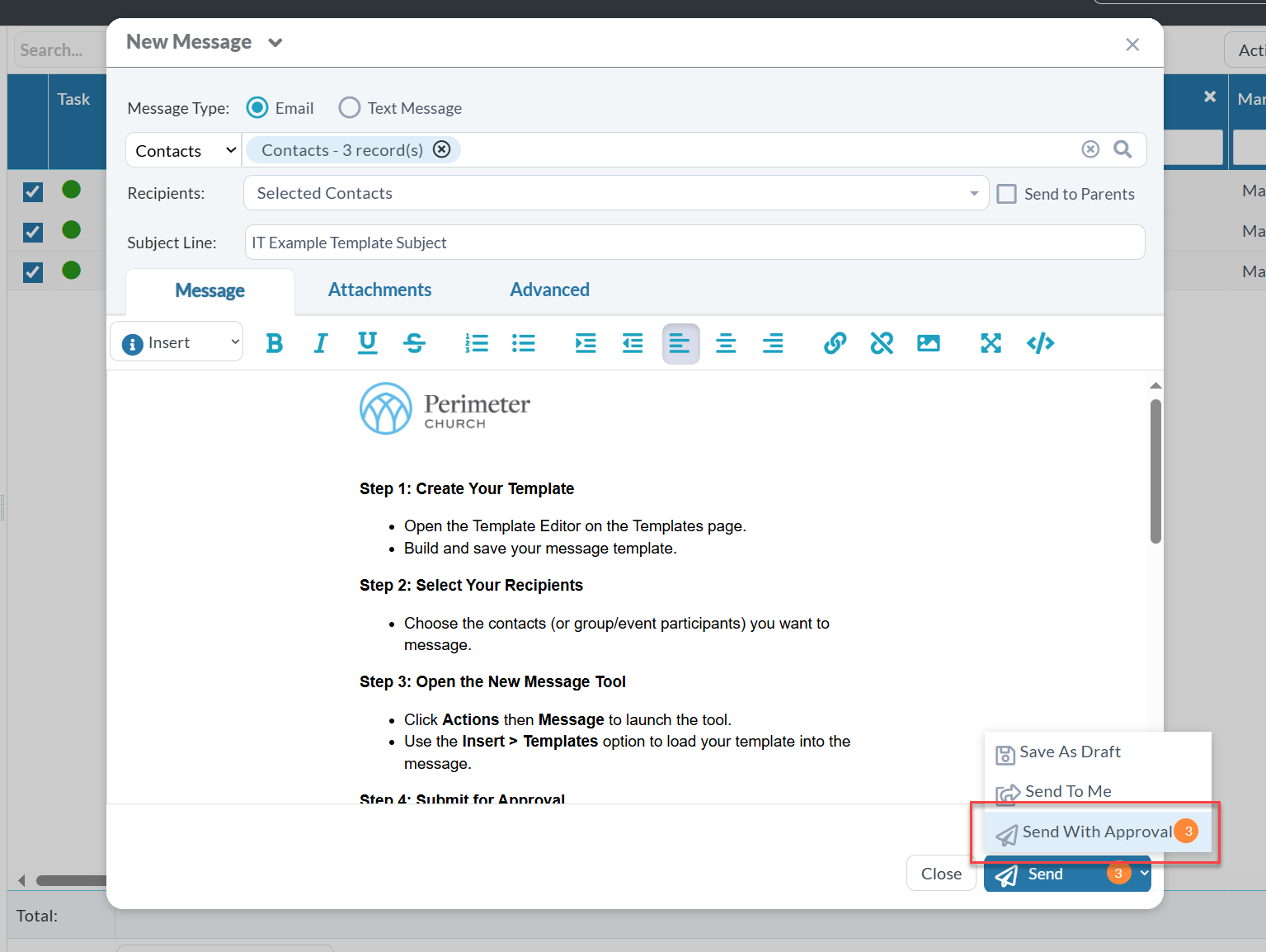
If you have 25 or more recipients selected, the “Send with Approval” option will become available. Click this option to submit your message into the Mass Comm Request process.
Step 6: Complete Mass Comm Request Form
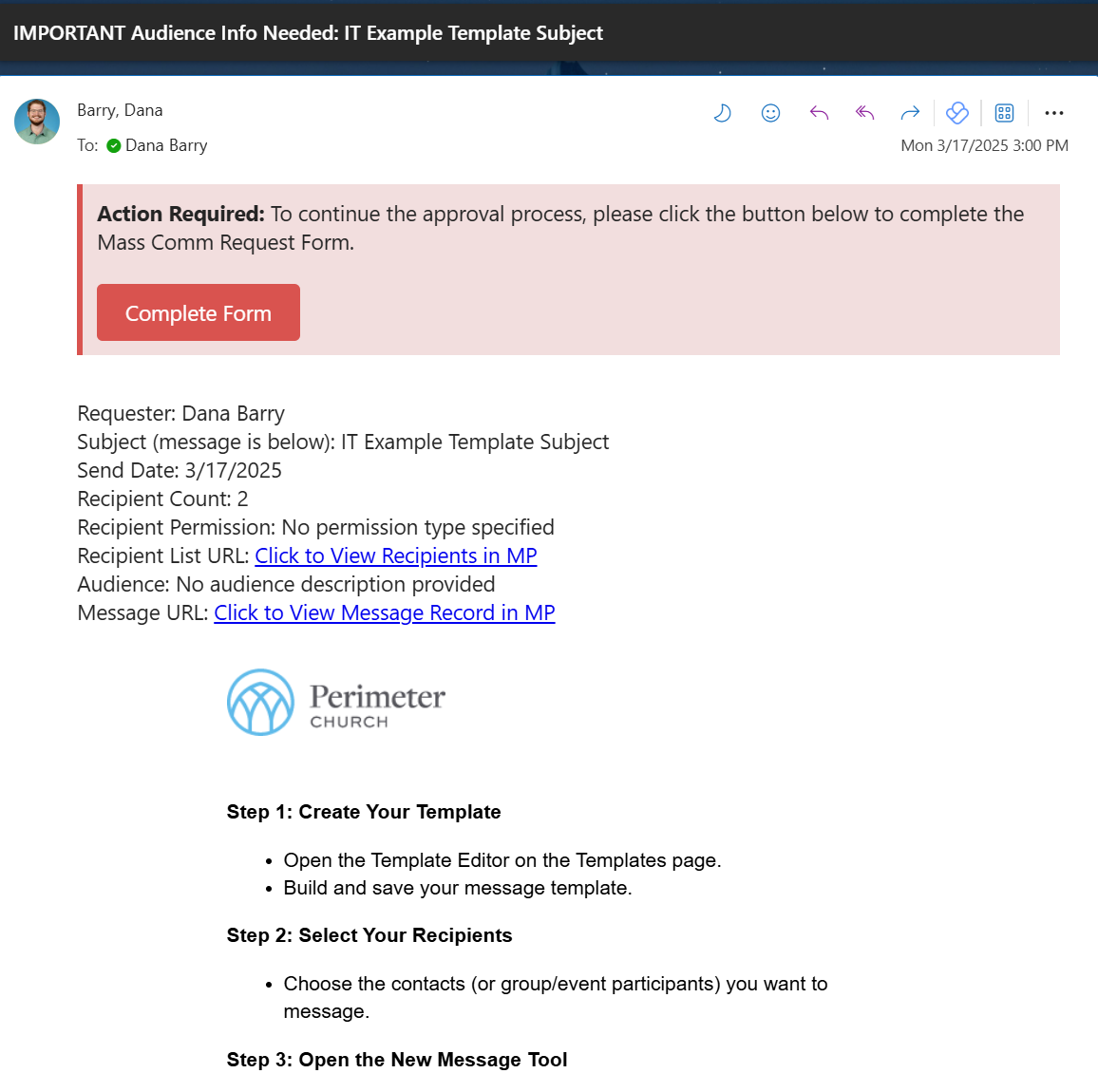
Within 5 minutes, you’ll receive a confirmation email at your perimeter.org account. Review the recipient count and subject line. If this is correct, click “Complete Form.”
Complete this form, providing the required information about those who will be receiving your message.
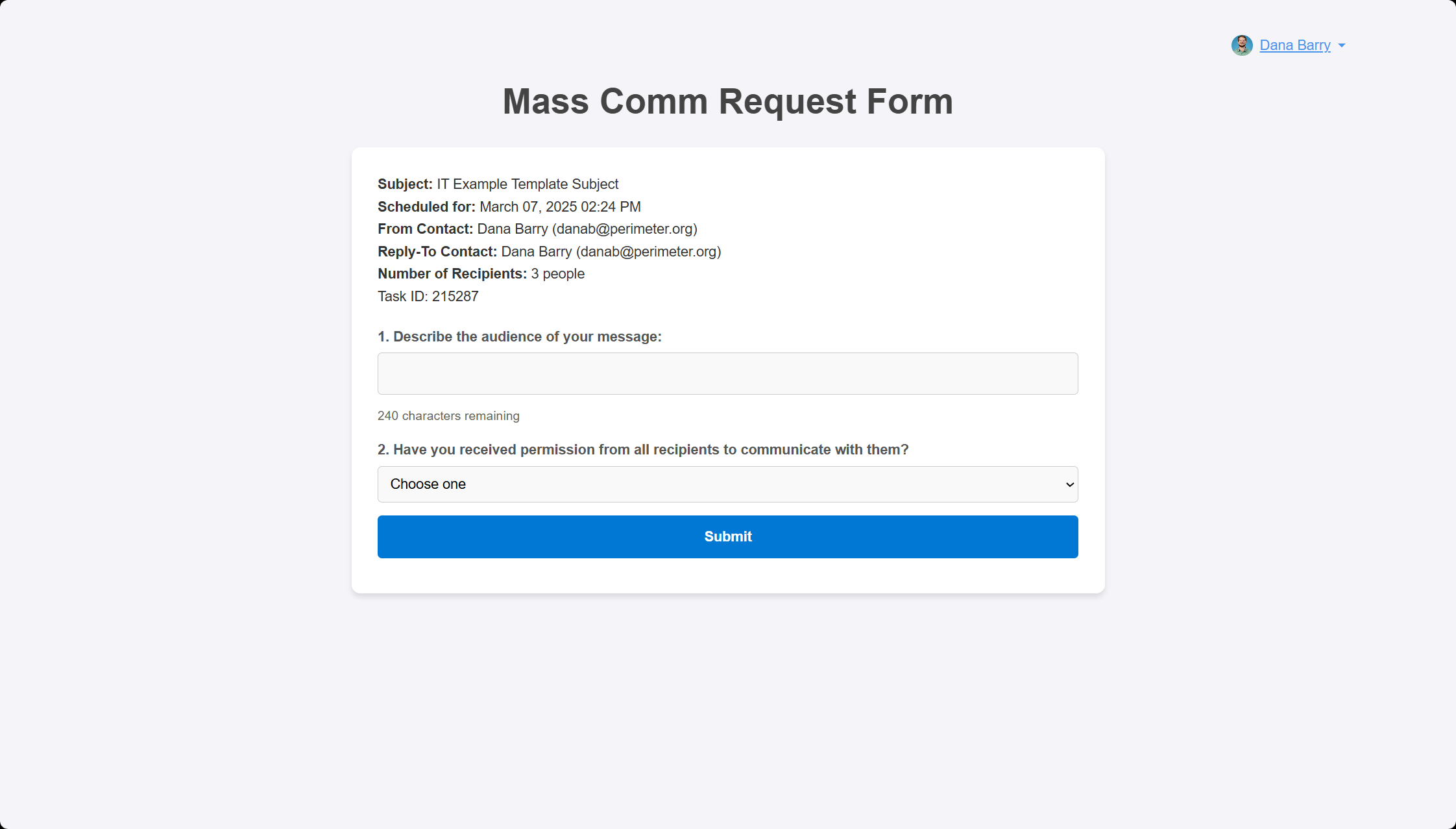
The Communications team will not be notified of your request until you submit this form!
Step 7: Communications Department Review
Upon completing the Mass Comm Request Form, the Communications department will receive a notification of your request and review your message:
- If approved, you will receive an email notification that your message was approved. If scheduled to send later, Ministry Platform will send your message at the scheduled date/time. Otherwise, it will send immediately upon approval.
- If rejected, you’ll receive an email notification with feedback. Follow the steps below to adjust and resubmit your message.
Adjusting a Rejected Message
If your message is rejected, follow these steps:
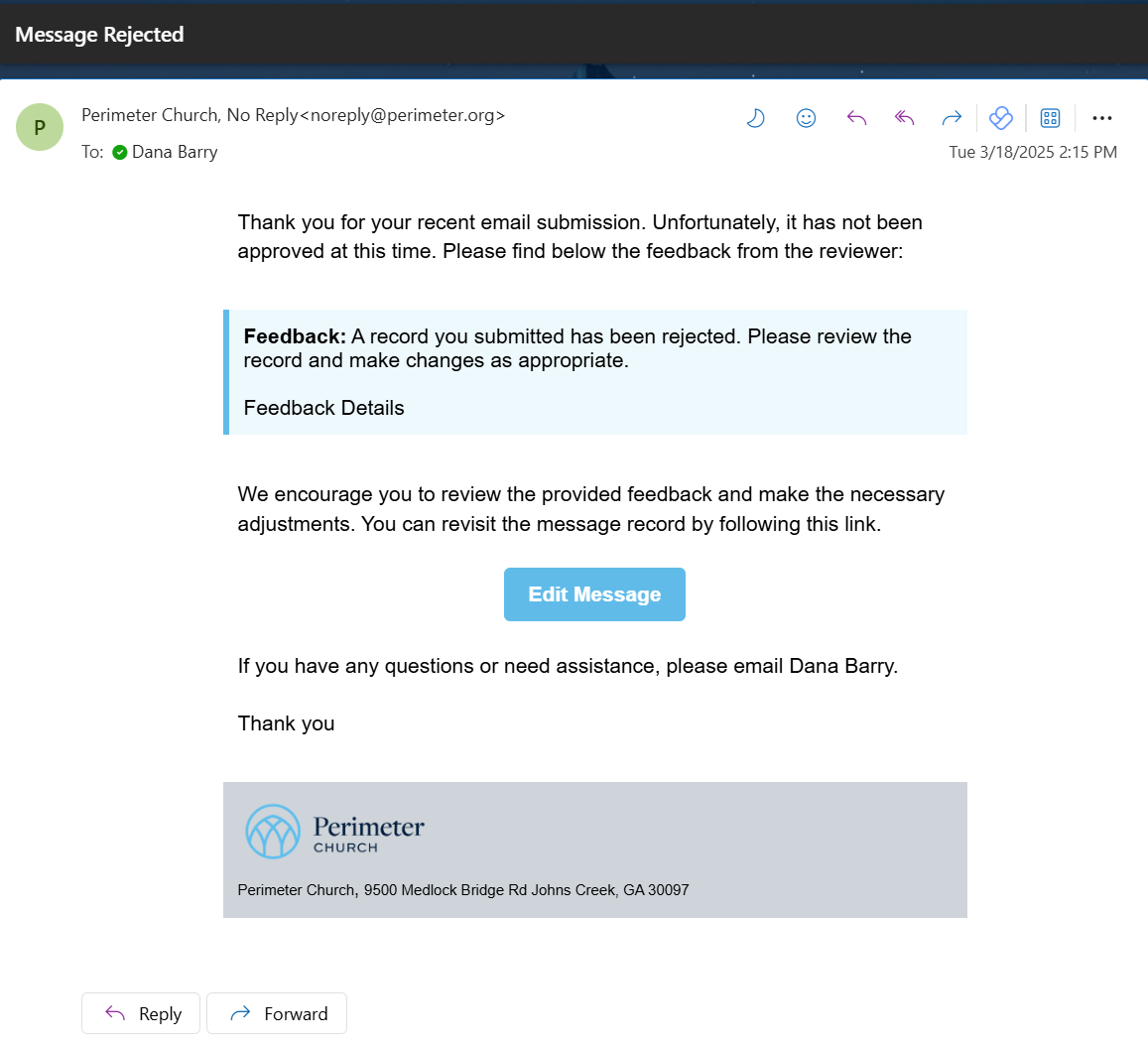
Step 1: Review Rejection Email
Open the rejection notification email, then click the provided link to open your message record in Ministry Platform.
Step 2: Edit Your Template
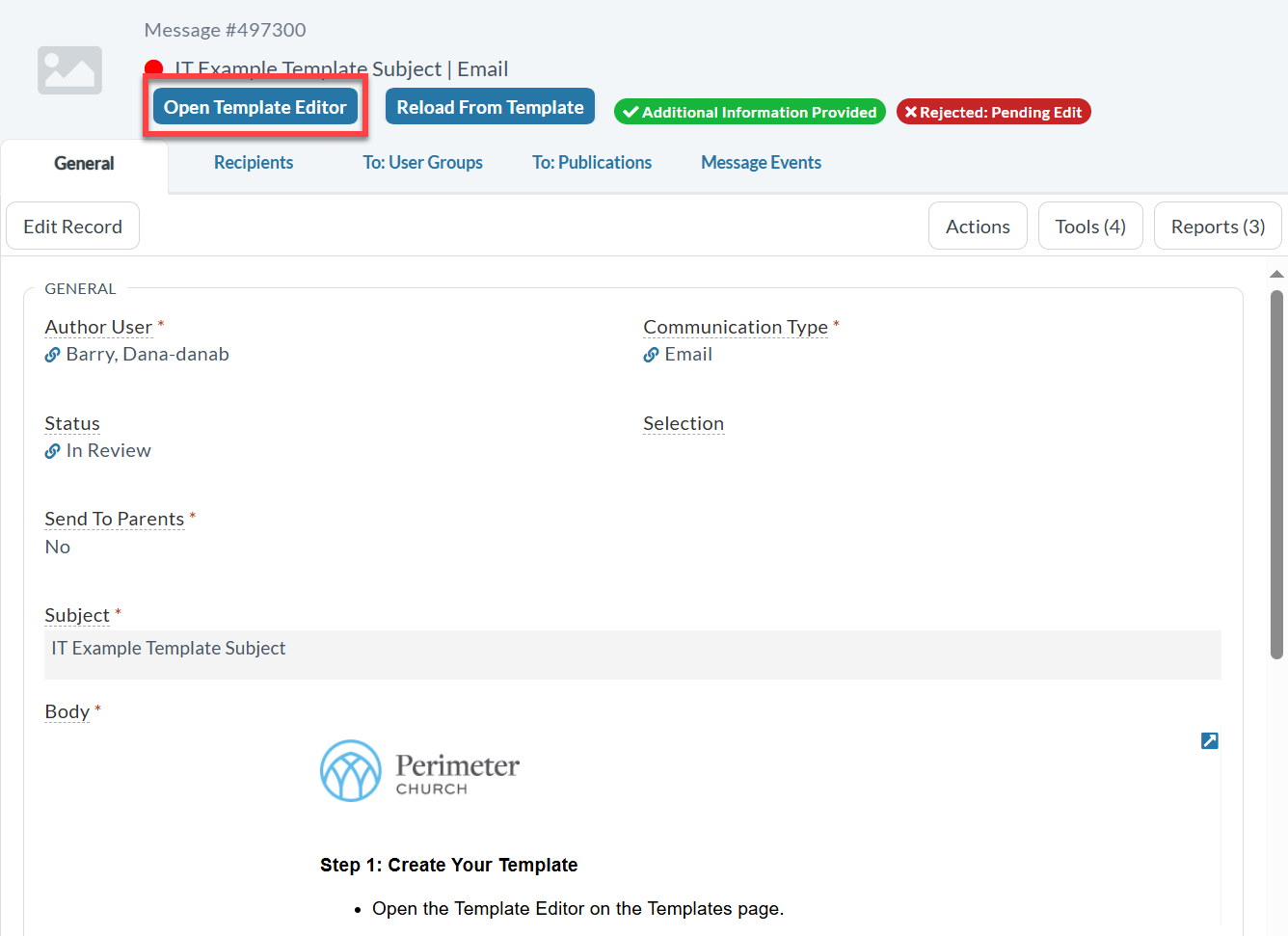
Click the Open Template Editor button on the message record and make the recommended changes.
Step 3: Reload Message from Template
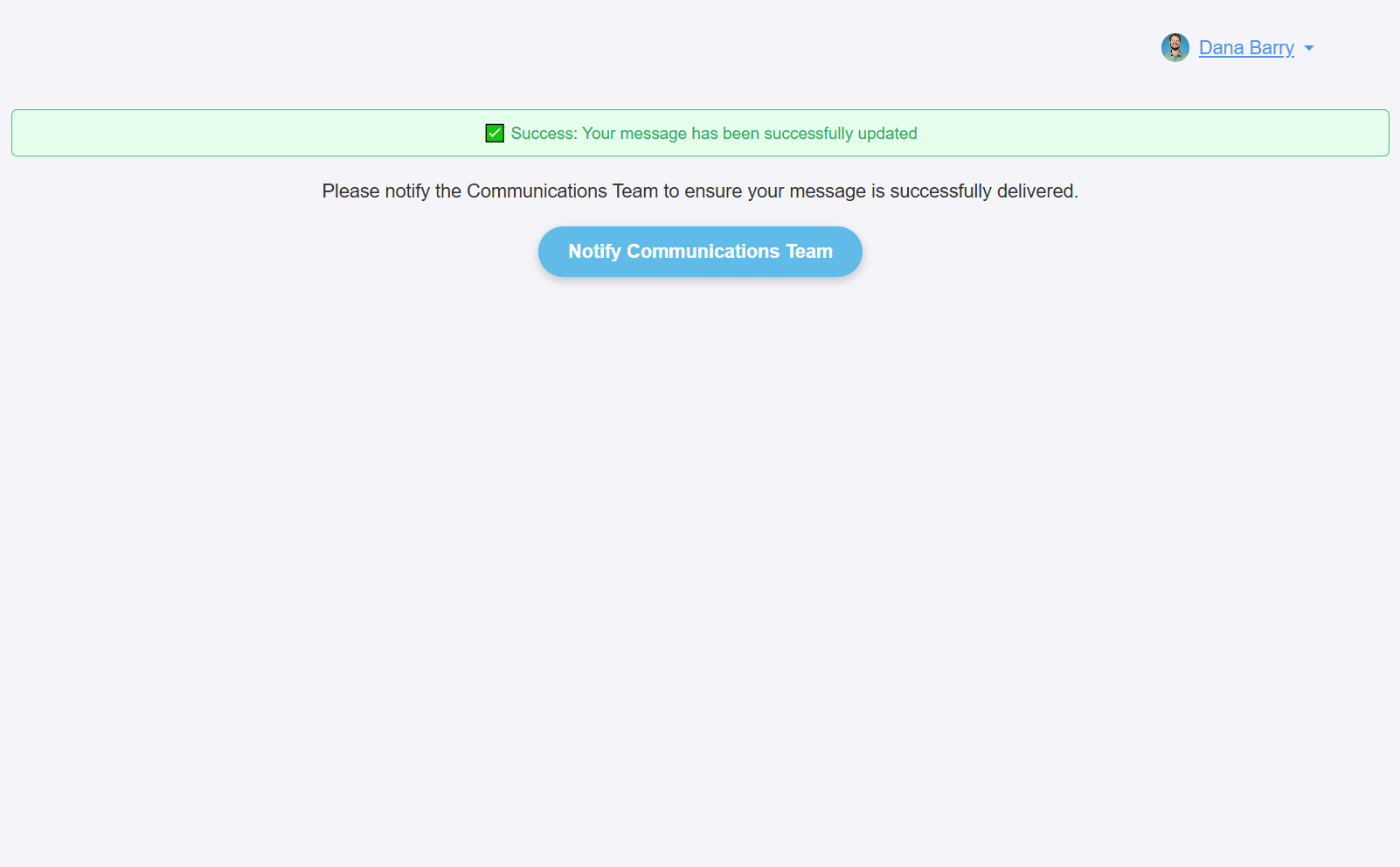
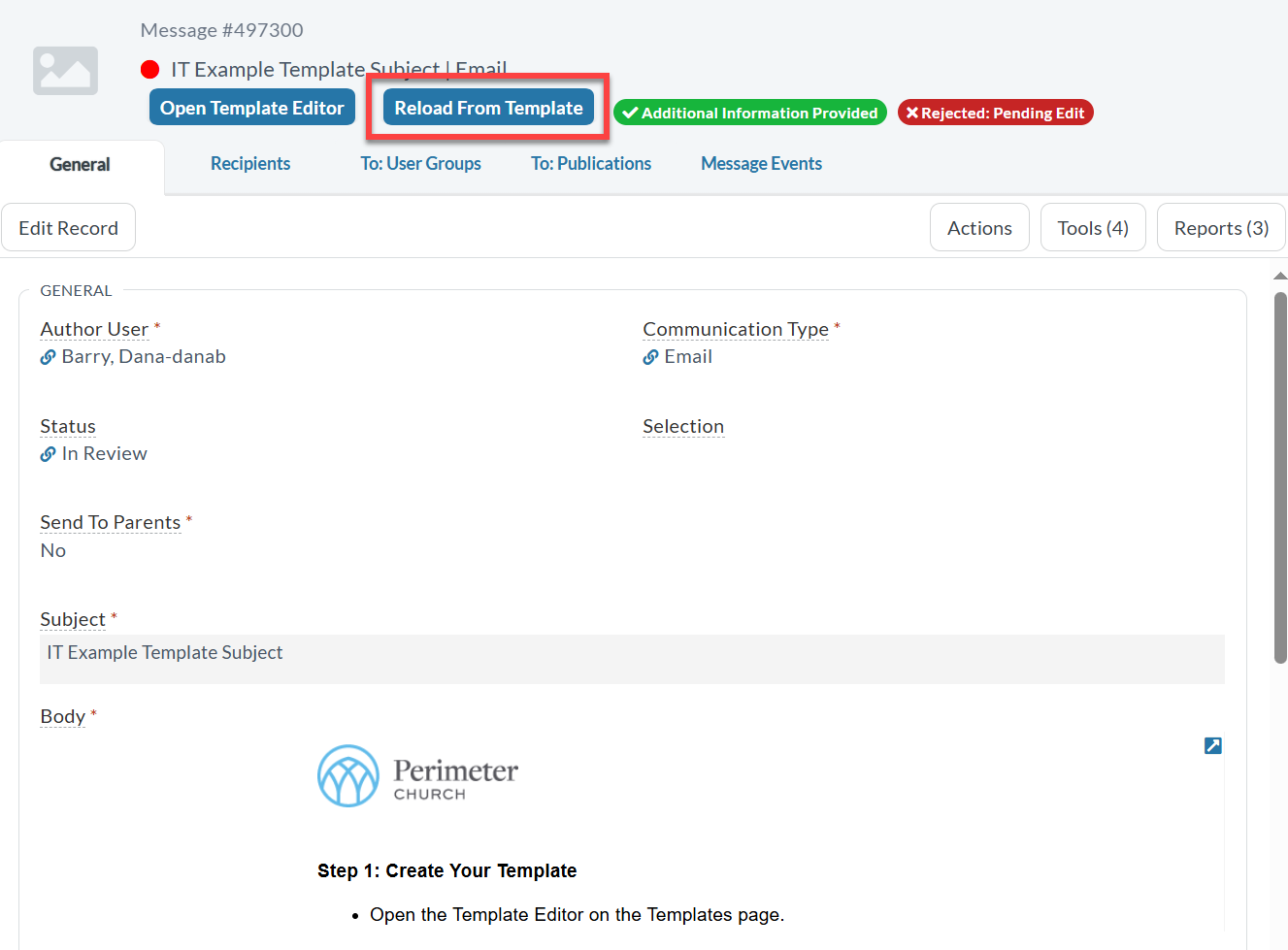
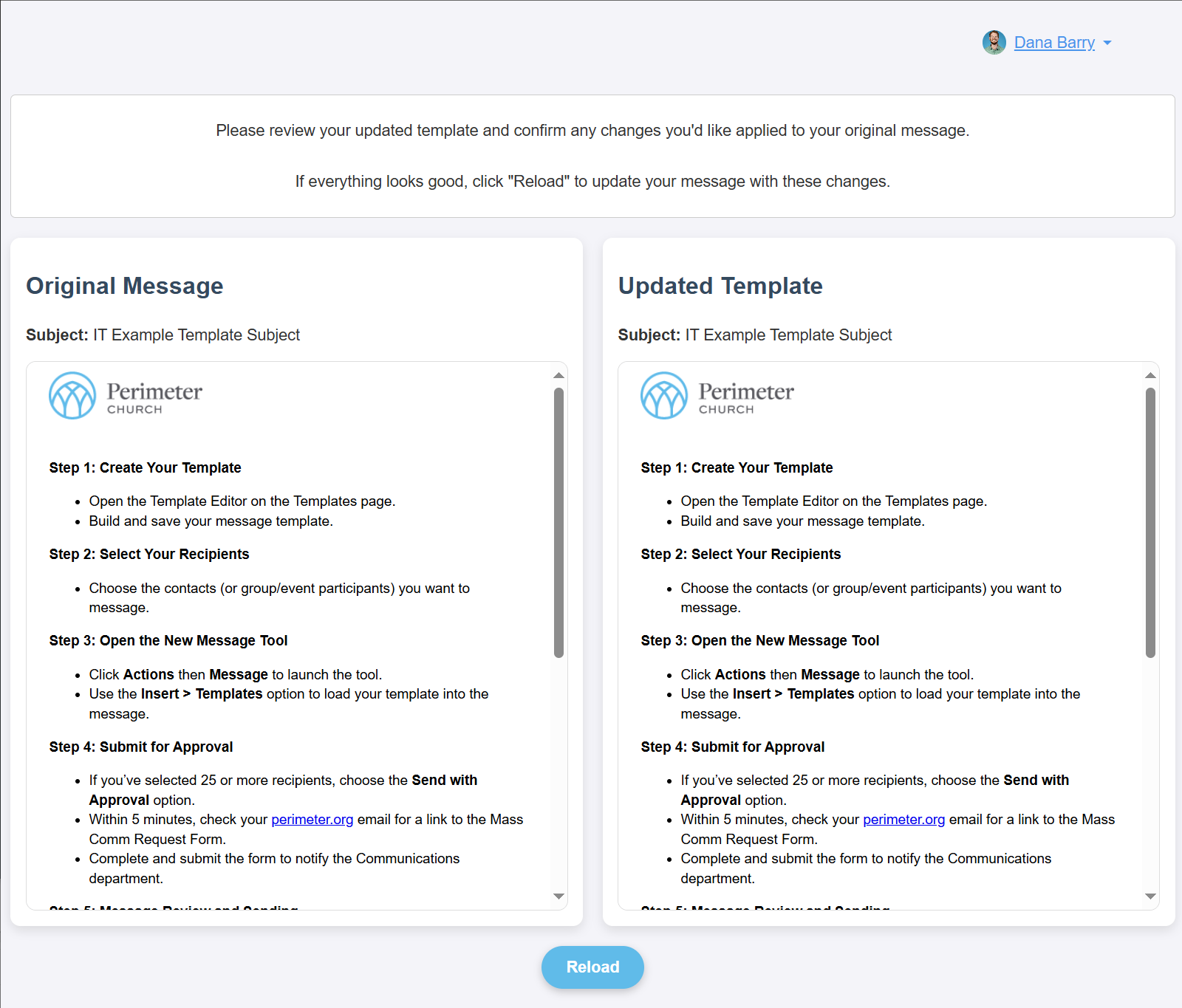
Next, click the Reload from Template button. This opens a new tab showing a side-by-side comparison of your original message and your updated template. Review carefully, then click Reload to update your current message. A success message will confirm the update.
Step 4: Notify Communications Department
Finally, click the Notify COMM button to alert the Communications department that your message is ready for another review. Upon approval, your message will send as originally intended.