Communications Review Process
This process outlines the steps for reviewing and approving/rejecting messages in Ministry Platform.
Step 1: Receive Notification
If you are a member of the Communications Review team, you will receive a Message Approval notification in your Outlook inbox whenever a Ministry Platform user requests to send an email to 25 or more people. This notification includes a sample of the email and additional information regarding the intended audience.
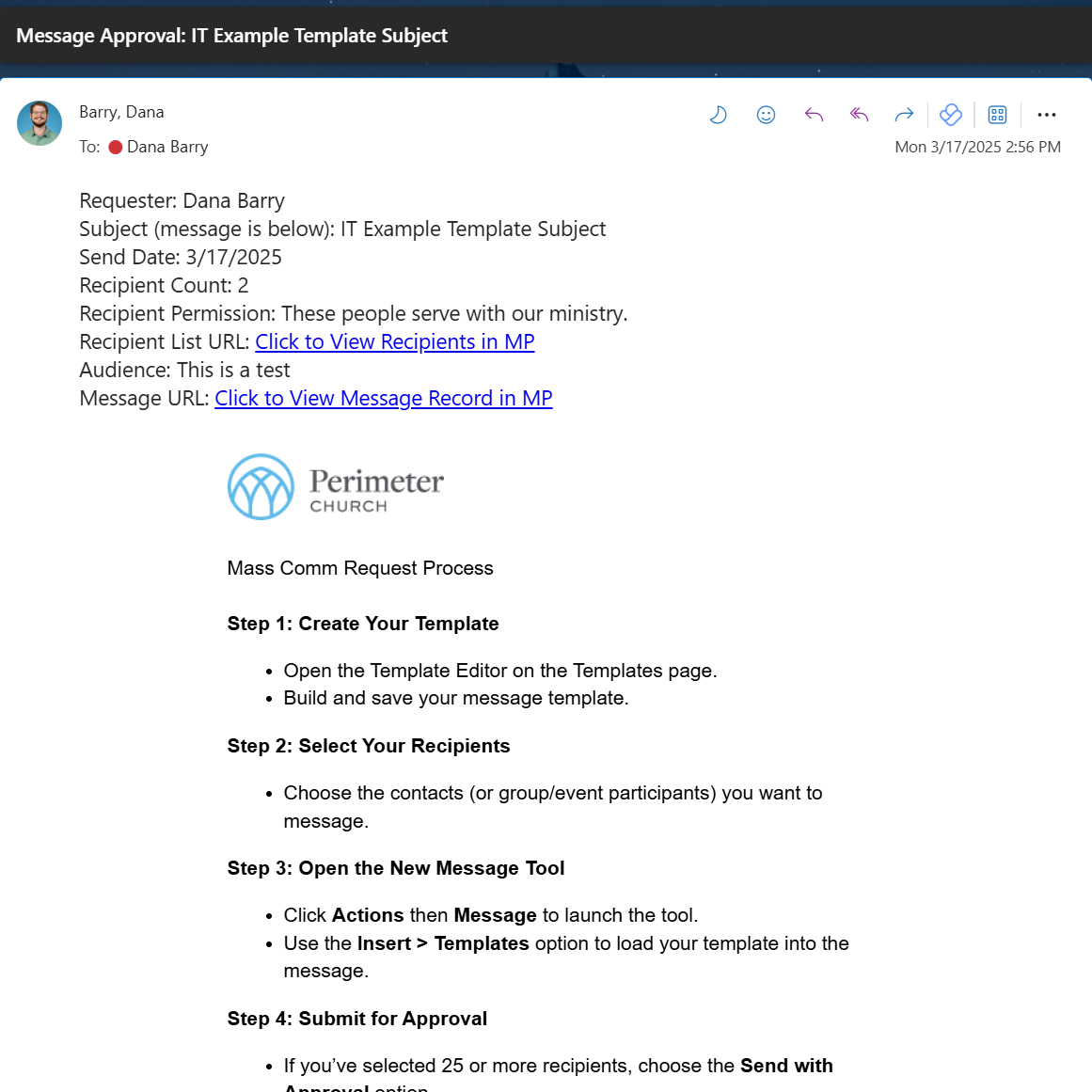
Step 2: Access the Message Record
Click the provided link in the notification email to open the Message record in Ministry Platform.
Step 3: Select Approval Task
When you are ready to review the message, click the Tasks dropdown and select the Approve Message task.
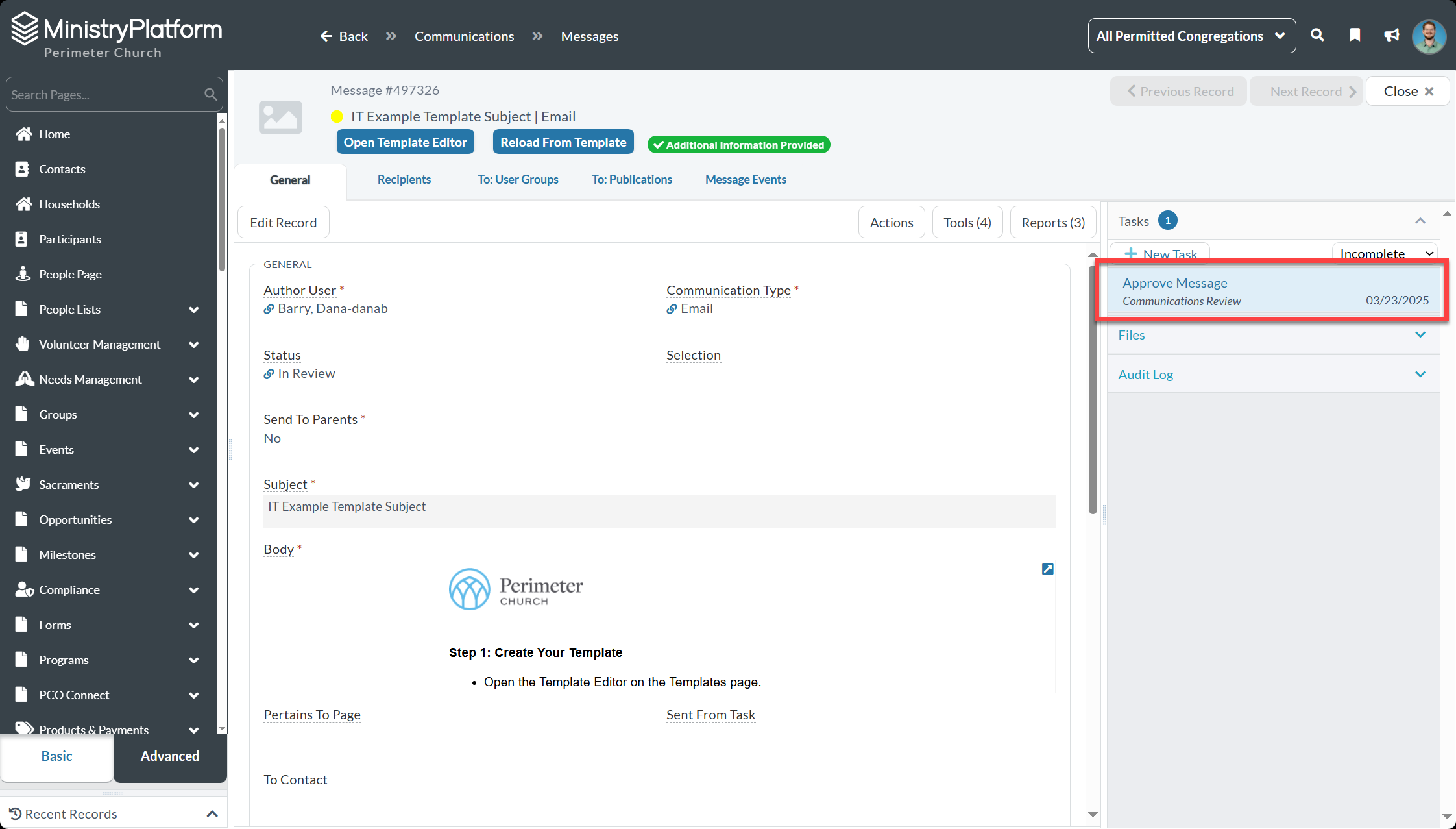
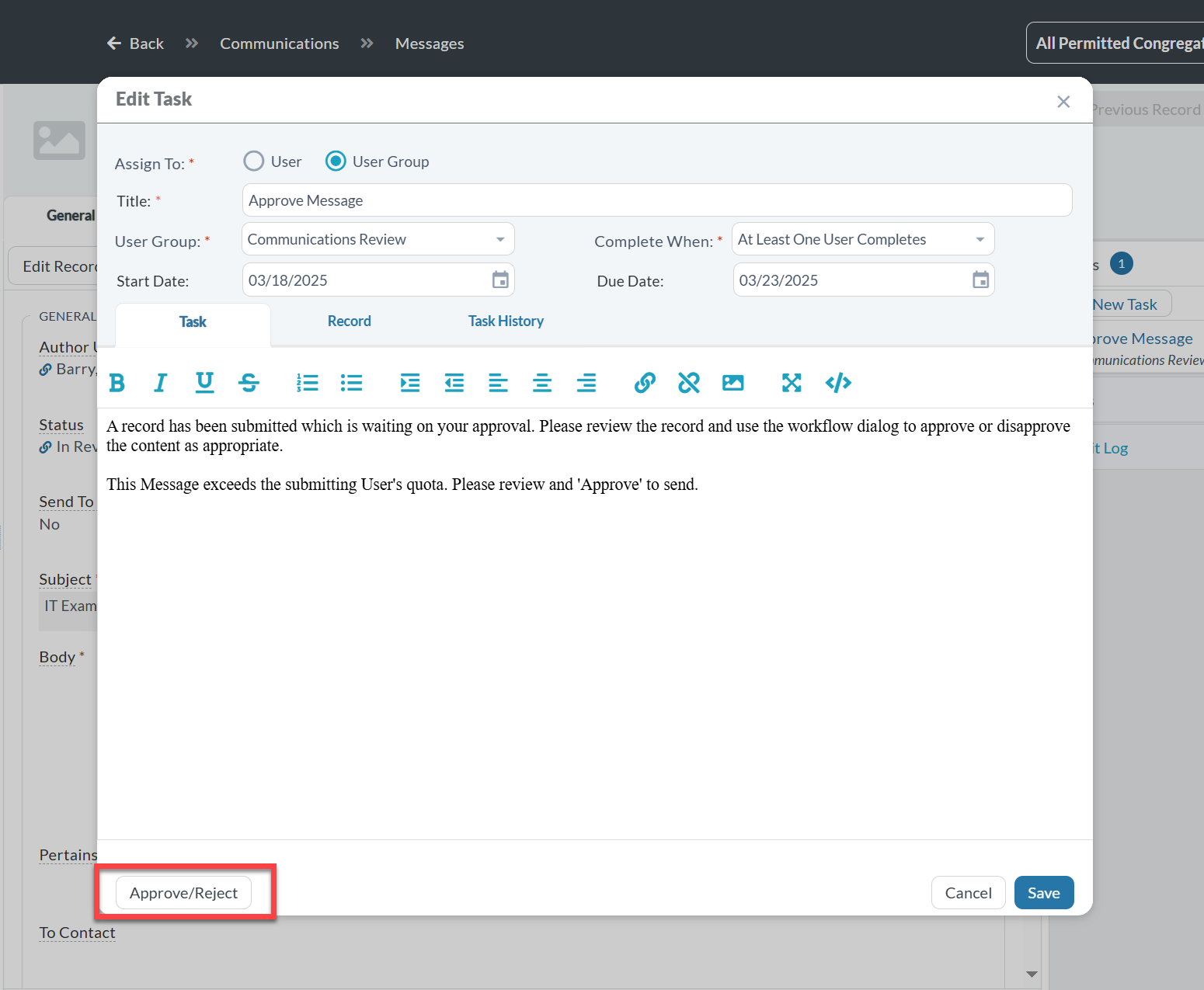
Step 4: Initiate Approve/Reject
Click the Approve/Reject button.
Step 5: Provide Comments if Rejecting
If you are rejecting the message, you must provide a comment detailing the required adjustments before clicking Reject. If you are approving the message, a comment is optional, as comments are not sent to the author upon approval.
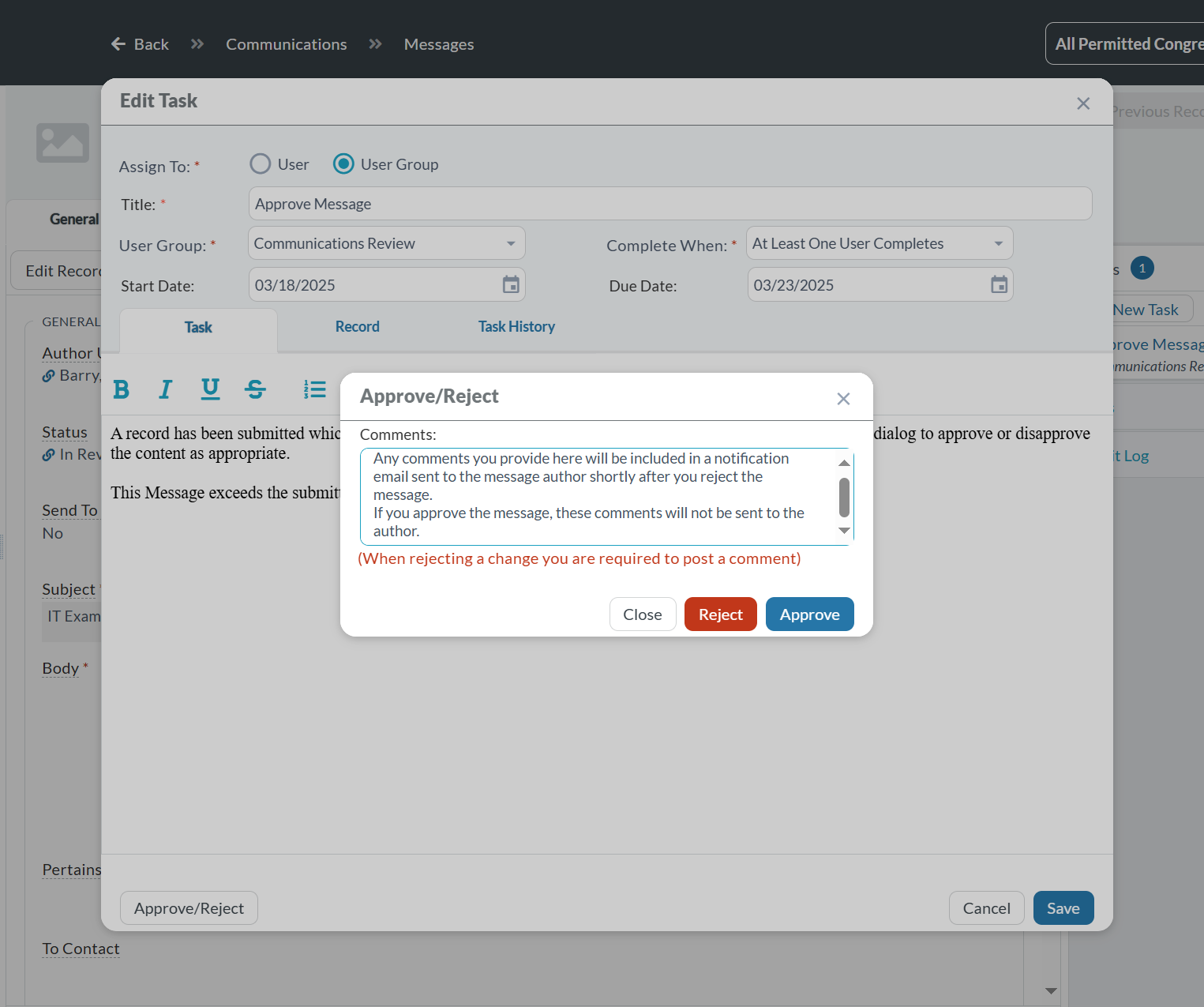
Step 6: Outcome Notification
After your action:
- If approved: The message will send immediately unless the author has scheduled it for a later time. The author will receive an automated email notification confirming the approval.
- If rejected: Your provided comments will automatically be emailed to the message's author, notifying them that adjustments are required.
Once a message is rejected, the task will no longer be available on your Ministry Platform (MP) Home page until the message is resubmitted for approval. This ensures that you do not accidentally approve a message before the author makes the necessary adjustments.
Step 7: Message Adjustment and Resubmission
The author will use the Template Editor and the Reload From Template tool to adjust their message, then resubmit it into the Mass Communication approval process.
Step 8: Receive Resubmission Notification
Once the message is resubmitted, you will receive another email notification indicating that the message has been resubmitted for approval.
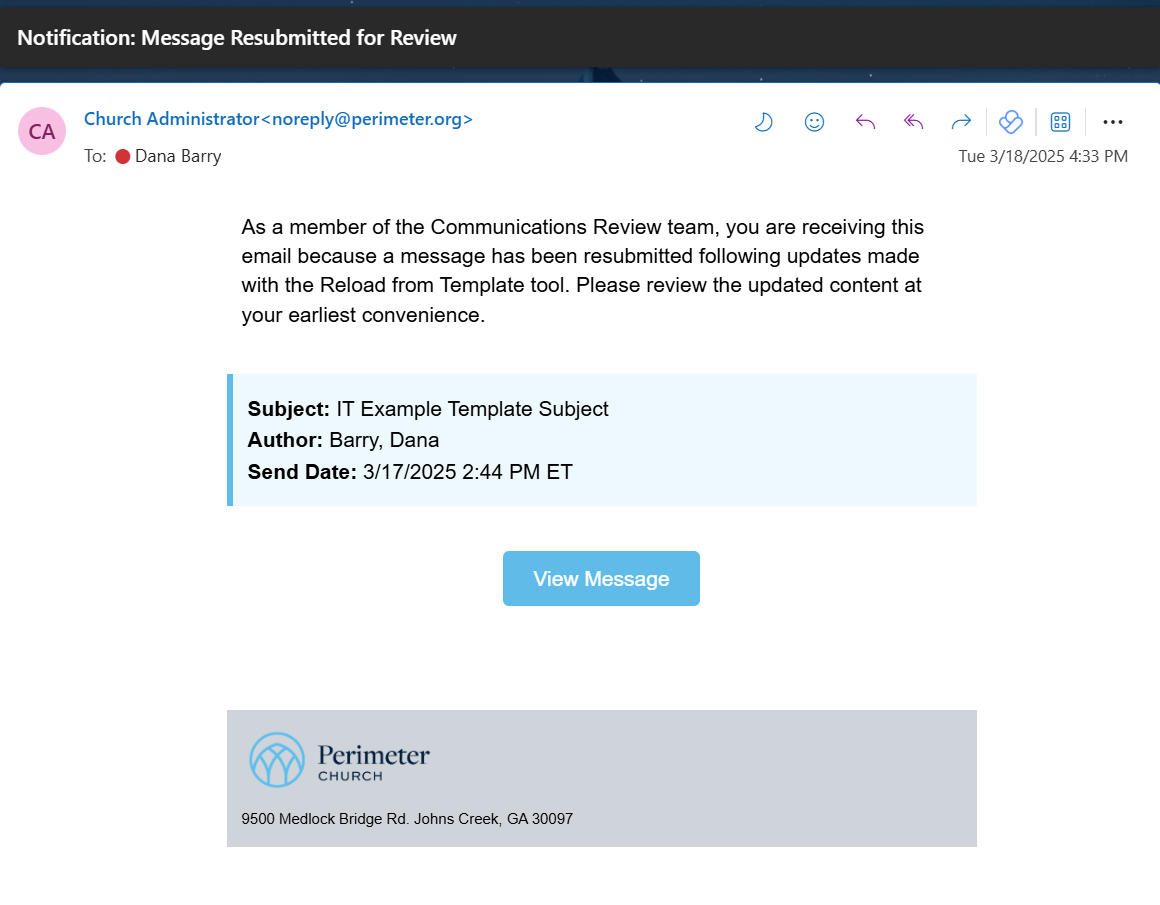
Step 9: Final Review
Within the resubmission notification email, click the provided link to view and approve or reject the message (see steps 3 through 5).